How Can You Protect a Mobile Device While Traveling?
Your smartphone carries more than contacts and photos. It holds banking apps, email access, boarding passes, authentication codes, and enough personal information to make a thief’s job easy if the device falls into the wrong hands.
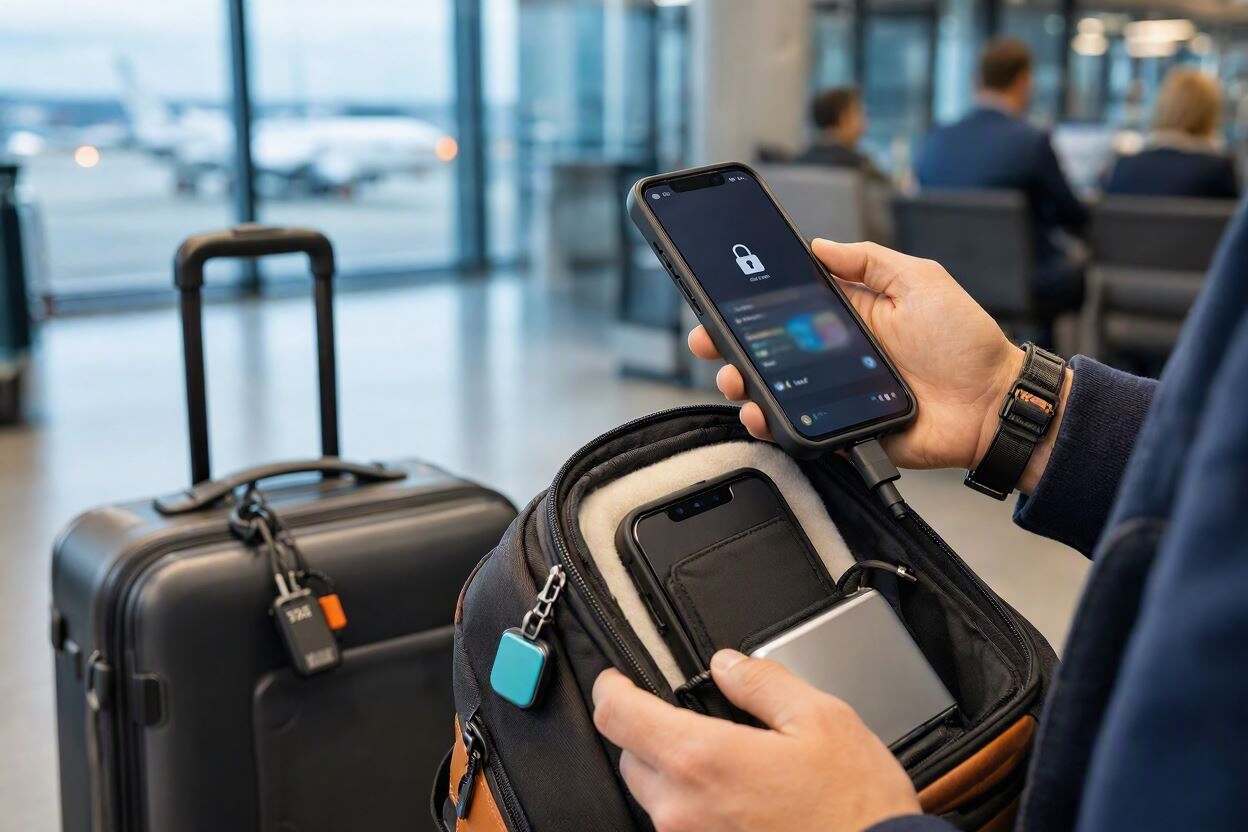
Travelers face two distinct threats: someone walking off with the phone itself, and someone intercepting the data flowing through it. A stolen device can unlock accounts within minutes. An unsecured network can quietly expose information without the traveler ever noticing it happened.
None of this requires becoming a security expert. A handful of settings configured before departure, a few habits maintained during the trip, and a clear recovery plan if something goes wrong are enough to close most of the gaps that put travelers at risk.
How Can You Protect a Mobile Device While Traveling?
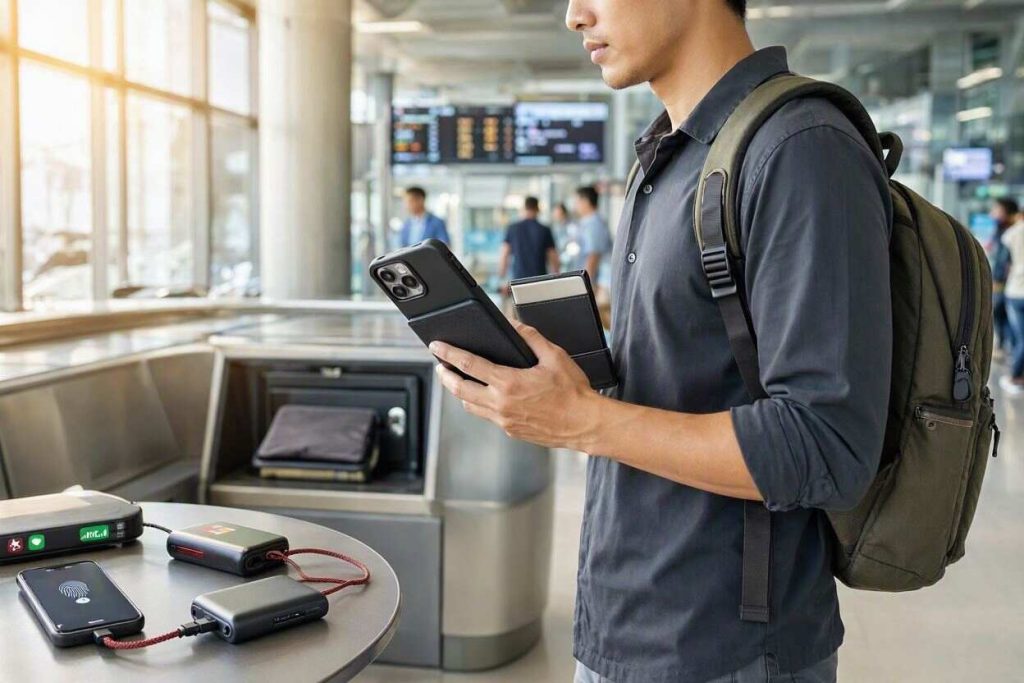
The most effective way to protect a mobile device while traveling is to combine physical security with cybersecurity habits: use a strong PIN or biometric lock, enable Find My Device or Find My iPhone, back up important data, keep software updated, avoid unsecured public Wi-Fi, use a trusted VPN when needed, disable unnecessary wireless connections, and prepare recovery options before departure.
Travel security works best as a layered system rather than a single safeguard. If one protection fails — a password gets guessed, a device gets snatched — the remaining layers keep the damage contained.
Quick Mobile Travel Security Checklist
| Action | Priority | When to Do It |
| Enable biometric lock or strong PIN | Critical | Before travel |
| Turn on Find My Device or Find My iPhone | Critical | Before travel |
| Back up important data | Critical | Before travel |
| Enable multi-factor authentication | Critical | Before travel |
| Install a trusted VPN | High | Before travel |
| Disable automatic Wi-Fi connections | High | Before travel |
| Set up a password manager | High | Before travel |
| Record your IMEI number | High | Before travel |
| Turn off Bluetooth when not in use | Medium | During travel |
| Avoid public USB charging stations | High | During travel |
| Prepare a device recovery plan | Critical | Before travel |
The Biggest Mobile Device Risks Travelers Face
Many travelers focus heavily on cyberattacks while overlooking the risk that causes the most damage most often: a phone simply being taken out of a pocket, a bag, or off a café table. Knowing which threats are actually likely — rather than which ones sound the scariest — helps travelers spend their attention where it matters.
Top 5 Travel Device Risks at a Glance
- Phone theft or snatching — the highest-likelihood, highest-impact risk, and the one physical security habits address directly.
- Unsecured public Wi-Fi — common and easy to fall into without noticing, especially on unfamiliar networks.
- Phishing and travel-themed scams — booking confirmations, delivery alerts, and QR codes designed to look routine.
- Lost devices — less dramatic than theft but just as damaging without backups and tracking enabled.
- Rogue charging stations and Bluetooth exposure — lower-probability risks that are inexpensive to guard against.
Travel Threat Matrix
| Threat | Likelihood | Impact | Severity (1–5) | Prevention |
| Phone theft or snatching | High | High | 5 | Physical control, secure storage, device tracking |
| Unsecured public Wi-Fi | High | Medium to High | 4 | VPN, mobile data, avoiding sensitive activity |
| Travel phishing scams | Medium | High | 4 | Verify messages, avoid suspicious links |
| Lost devices | Medium | High | 4 | Device tracking, backups, remote wipe |
| Rogue charging stations | Low to Medium | Medium | 2 | Personal chargers and power banks |
| Shoulder surfing / PIN observation | Medium | Medium | 3 | Screen awareness, biometric security |
| Bluetooth attacks | Low | Medium | 2 | Disable Bluetooth when unused |
Public safety and consumer-protection resources — including the guidance published by the U.S. Cybersecurity and Infrastructure Security Agency (CISA), the Federal Trade Commission’s scam-alert programs, and device makers such as Apple and Google — consistently point to the same two priorities for travelers: control of the physical device, and caution on unfamiliar networks. Everything else in this guide builds on those two fundamentals.
Theft and Phone Snatching
Phone theft is the most immediate threat for travelers because a device often provides direct access to email, banking apps, payment methods, and identity information the moment it’s unlocked.
- Snatch-and-run thefts in crowded areas
- Pickpocketing near transit stops and ticket counters
- Distraction techniques — someone asking for directions or help while an accomplice moves in
- Theft during boarding or disembarking from transportation
- Unattended devices left on restaurant tables or bar counters
Picture a traveler navigating with a map app while walking through a busy train station, phone held loosely at chest height, attention split between the screen and the crowd. That combination — visible device, divided attention, dense foot traffic — is exactly the profile thieves look for. A traveler who checks the map briefly, pockets the phone, and keeps walking presents a far less appealing target.
Physical theft deserves priority over almost every other risk on this list, because it can escalate into account compromise within minutes if screen locks, biometrics, and app-level protections aren’t already in place.
Unsafe Public Wi-Fi Networks
Public Wi-Fi is convenient, but convenience should never be mistaken for security. Some attackers set up fake hotspots with names that closely imitate legitimate airport, hotel, or café networks, hoping travelers connect without checking.
- Credential theft through fake login portals
- Data interception on unencrypted connections
- Session hijacking on sites that don’t enforce HTTPS
- Exposure of sensitive information sent over the network
The safest approach is to default to mobile data for anything sensitive, and to treat public Wi-Fi as acceptable for low-stakes browsing only.
Phishing and Travel Scams
Travelers expect a steady stream of messages from airlines, hotels, transportation apps, and payment processors — which is exactly why scammers target this window. A message that looks like a routine booking update is far more likely to get an unguarded click during a trip than it would at home.
- Fake booking confirmations and itinerary changes
- Fraudulent airline delay or gate-change alerts
- QR-code scams placed over legitimate codes on menus, parking meters, or posters
- Delivery or customs notifications requesting a small “fee”
- Urgent payment requests tied to a reservation
A message that appears legitimate can still direct users to a counterfeit site built to collect login credentials. Verify anything urgent or payment-related through the official app or website rather than a link inside an unsolicited message.
Juice Jacking and Public Charging Risks
Juice jacking refers to the possibility that a compromised USB connection could be used to transfer data or interact with a connected device during charging. The real-world risk varies by device and operating system — modern phones include stronger safeguards against unauthorized data access over USB than older models did — but the precaution is inexpensive enough that skipping it isn’t worth the small convenience.
- Carry a personal wall charger
- Carry a power bank as backup
- Use your own charging cable rather than one provided at a kiosk
- Use a USB data blocker if public charging is genuinely unavoidable
Bluetooth and Wireless Attacks
Bluetooth is useful for headphones, smartwatches, and keyboards, but leaving it active around the clock offers little benefit when those accessories aren’t in use.
- Unauthorized pairing attempts from nearby devices
- Device discovery by attackers scanning for open connections
- Accidental connections to untrusted or spoofed devices
Turning Bluetooth off when it isn’t needed closes this exposure and tends to improve battery life at the same time.
Travel Cybersecurity Risks Beyond Public Wi-Fi
Wi-Fi gets most of the attention, but several other travel-specific risks operate independently of which network a phone is connected to.
- QR-code scams — stickers placed over legitimate codes on parking meters, restaurant menus, or tourist signage that redirect to malicious sites.
- Fake booking websites — cloned hotel or rental listings designed to capture payment details, often surfaced through paid ads or search results that mimic the real property.
- Airport charging scams — compromised public charging stations, addressed by carrying personal chargers and power banks as described above.
- Fake airline emails — spoofed delay, cancellation, or rebooking notices timed to arrive when travelers are most likely to act quickly without double-checking.
The common thread across all four is urgency paired with unfamiliarity. Slowing down for ten seconds to verify a request through an official app is usually enough to avoid falling for it.
10 Practical Ways to Prevent Phone Theft While Traveling
Theft prevention deserves its own list because it’s the single highest-impact category of risk. These habits work together — no single one is sufficient on its own, but combined they make a phone a far less appealing target.
- Use a crossbody bag or zipped inner pocket instead of an open bag pocket or back pocket.
- Keep the phone out of sight when it isn’t actively being used, rather than resting on a restaurant table or bar top.
- Stay alert during transit boarding, when crowding and distraction give thieves the best cover.
- Check maps briefly and pocket the device again, rather than holding it visibly while walking.
- Avoid setting the phone down in crowded tourist attractions, even briefly for a photo.
- Use a wrist strap or phone lanyard in dense crowds or nightlife areas.
- Keep bags positioned in front of the body, not slung behind, in markets and stations.
- Be cautious about handing a phone to a stranger for a photo — offer to take theirs first, or ask another traveler nearby instead.
- Use a waterproof pouch or secure storage near beaches and pools, where devices are often left unattended.
- Enable a strong PIN and biometric lock so a stolen device is useless to a thief even if it’s taken.
What to Do Before You Travel
Preparation delivers the highest return on effort of anything in this guide. Most mobile security incidents become dramatically easier to manage when the right settings are configured before departure rather than scrambled together afterward.
Security Settings Checklist
| Setting | Why It Matters | Recommended Status |
| Screen Lock | Prevents unauthorized access | Enabled |
| Biometrics | Faster secure authentication | Enabled |
| Strong PIN | Backup security layer | Enabled |
| Multi-Factor Authentication | Protects accounts beyond the device | Enabled |
| Find My Device / Find My iPhone | Recovery support | Enabled |
| Automatic Backups | Data protection | Enabled |
| Device Encryption | Protects stored information | Enabled |
| Password Manager | Reduces password reuse risk | Installed |
| Auto Wi-Fi Join | Reduces rogue network risk | Disabled |
| Bluetooth Auto-Discovery | Reduces wireless exposure | Disabled |
| Location Services Review | Privacy protection | Reviewed |
| App Updates | Fixes known vulnerabilities | Current |
| VPN | Secures public-network connections | Installed |
Update Your Device and Apps
Operating system and app updates frequently patch security vulnerabilities that have already been discovered and, in some cases, are already being exploited. Outdated software leaves those weaknesses open long after fixes exist.
- Install pending operating system updates
- Update all critical applications, especially banking and authentication apps
- Remove apps that are no longer used
- Confirm security software is functioning correctly
Enable Multi-Factor Authentication
Multi-factor authentication (MFA) adds a second checkpoint beyond a password, so a compromised password alone isn’t enough to grant access.
Not all MFA is equal. Authenticator apps (such as a dedicated code-generator app) are generally considered stronger than SMS-based codes, because text messages can potentially be intercepted through SIM-swap fraud, while an authenticator app is tied to the device itself and works even without cellular signal — a meaningful advantage while traveling internationally with spotty coverage. Where a service offers a choice, an authenticator app or a hardware security key is the more resilient option; SMS codes are still far better than no second factor at all.
- Banking
- Cloud storage
- Travel booking accounts
- Password manager accounts
Turn On Find My Device or Find My iPhone
Tracking tools can locate, lock, or erase a missing device remotely — but only if they’re enabled and tested before something goes wrong.
For Apple users: enable Find My iPhone and confirm location services are functioning correctly. For Android users: enable Google Find My Device and verify remote management options are active. Testing these features before departure is far easier than trying to configure them for the first time after a device goes missing.
Back Up Important Data
A backup doesn’t prevent theft, but it prevents theft from becoming a second, larger loss on top of the first.
- Contacts
- Photos
- Documents and travel itineraries
- Authentication recovery information
Consider a traveler whose phone is stolen on the second day of a two-week trip. With automatic cloud backups already running, the itinerary, boarding passes, and photos from the first two days are all recoverable on a replacement device within minutes. Without a backup, that traveler loses not just the hardware but every photo and document stored only on the phone — the difference a five-minute setup step makes before departure.
Record Your IMEI Number
The International Mobile Equipment Identity (IMEI) number uniquely identifies a device. If a phone is lost or stolen, the IMEI may be required when filing a police report, contacting a carrier, or processing an insurance claim.
Store the IMEI separately from the device itself — in a password manager, a secure cloud note, or a printed copy of travel documents — so it’s accessible even if the phone is gone.
Enable Device Encryption
Modern smartphones generally include built-in encryption that scrambles stored data so it can’t be read without the correct passcode or biometric credential, even if someone removes the storage chip directly. In practical terms, encryption is what turns a stolen phone from “all my data is exposed” into “my data is locked behind the same PIN protecting the lock screen.” Verify the setting is active before departure, since it’s typically enabled by default on current devices but worth confirming on older hardware.
Install a Trusted VPN
A VPN (Virtual Private Network) encrypts internet traffic between a device and the VPN provider’s servers, making it much harder for anyone else on the same network to intercept what’s being sent.
A VPN is most useful when using public Wi-Fi, working remotely, accessing sensitive accounts, or traveling frequently through unfamiliar networks. It is not a substitute for the other habits in this guide — it protects the connection, not the device itself, and it won’t stop a phishing link or a stolen phone from causing damage.
Industry security guidance generally frames VPN use as situational rather than constant: turn it on for unfamiliar or public networks and sensitive activity, rather than leaving it running indiscriminately for every low-stakes task. That habit keeps the protection available exactly when it matters most, without adding friction to routine browsing.
Do I Really Need a VPN? A Quick Decision Tree
- Connecting to airport, hotel, or café Wi-Fi? → Use a VPN, or switch to mobile data.
- Using cellular data (4G/5G) for routine browsing? → A VPN is optional; cellular networks are already encrypted at the carrier level.
- Logging into banking, email, or a password manager on any public network? → Use a VPN, no exceptions.
- Just reading news or checking the weather on hotel Wi-Fi? → A VPN is optional but doesn’t hurt.
- Doing remote work or accessing business systems while traveling? → Use a VPN as a standing rule, regardless of network.
Set Up a Password Manager
A password manager generates and stores a unique, complex password for every account, so a single leaked or guessed password can’t be reused to unlock email, banking, and shopping accounts one after another. That matters more while traveling, not less: travelers log into more unfamiliar Wi-Fi networks, more one-off booking sites, and more shared devices at business centers or internet cafés than they do at home, all of which increase the odds that one password gets exposed.
- Store the IMEI number, backup codes, and emergency contacts alongside passwords for quick access if the phone is lost.
- Enable the password manager’s own MFA so the vault itself is protected by more than a single master password.
- Confirm the password manager syncs to a second device or the cloud, so account access survives even if the phone doesn’t.
- Prioritize resetting the password manager’s master password first if a device is ever compromised, since every other credential depends on it.
eSIM Security: Setup, Risks, and Recovery
eSIM technology lets travelers activate a data plan digitally, without swapping a physical SIM card at a kiosk or counter. It’s become one of the more popular travel conveniences of the last few years, and it comes with its own security considerations that are easy to overlook.
Setup: Purchase eSIM plans directly from the carrier or a reputable, well-reviewed provider rather than an unfamiliar third-party seller found through a search ad. Activate the plan before departure when possible, using trusted Wi-Fi, since activation typically requires scanning a QR code or entering an activation code that ties the plan to the device.
Risks: Because eSIM activation happens digitally, phishing attempts sometimes target travelers with fake “activate your eSIM” messages or counterfeit QR codes. Carrier account takeovers are also a consideration — if an attacker gains access to the account tied to an eSIM, they may be able to reassign the number, which is why account-level security matters as much as the eSIM itself.
- Purchase plans only from reputable, verifiable providers
- Enable MFA on the carrier account managing the eSIM
- Monitor account notifications for unexpected changes
- Keep recovery information for the carrier account available separately from the phone
Recovery: If a device with an active eSIM is lost or stolen, the eSIM generally can’t be physically removed the way a plastic SIM can — recovery goes through the carrier account instead. Contacting the carrier to suspend or reassign service is the equivalent step to removing a physical SIM, and it should happen at the same point in the recovery process: right after the device is locked or wiped remotely.
Security Risks When Changing SIM Cards Abroad
Travelers who prefer a physical local SIM over an eSIM face a related but distinct set of considerations. Buying a local SIM at an official carrier store or airport kiosk is generally safe; buying one from an unofficial street vendor introduces more uncertainty about how the SIM was provisioned and what data the seller may retain.
- Buy local SIMs from official carrier stores or well-reviewed kiosks, not informal street sellers.
- Keep the original home SIM stored securely rather than discarding it, since it may be needed for account verification back home.
- Be aware that swapping SIMs temporarily disables MFA codes tied to the home number — switch sensitive accounts to an authenticator app before the swap.
- Watch for unexpected “SIM registration” text messages after activation, which can indicate the SIM was previously used or improperly deactivated from another account.
How to Keep Your Device Safe During Travel
Protecting a device during the trip itself comes down to consistent habits more than any single tool. Most travel-related security incidents trace back to a small, avoidable moment: connecting to an unverified network, leaving a phone unattended, or reacting to a convincing scam message while distracted.
Avoid Unsecured Public Wi-Fi
Public Wi-Fi isn’t automatically dangerous, but it should never be treated as a trusted network by default.
- Confirm the exact network name with staff when possible
- Avoid banking or financial transactions on public networks
- Avoid transmitting sensitive business information
- Log out of important accounts after finishing
- Prefer mobile data for anything sensitive
Is Public Wi-Fi Safe When Traveling?
Yes, for low-risk activities like reading news or checking the weather. No, for banking, payments, business communications, or account management — those should move to a trusted VPN or a cellular connection instead.
Use VPNs Correctly
A VPN encrypts internet traffic and reduces exposure on public networks, but it doesn’t prevent theft, stop phishing attacks, or make an unsafe website trustworthy. It’s one layer among several, not a replacement for the others.
VPN Decision Framework
| Situation | VPN Recommended? |
| Airport Wi-Fi | Yes |
| Hotel Wi-Fi | Yes |
| Café Wi-Fi | Yes |
| Mobile Data (4G/5G) | Usually optional |
| Banking on public Wi-Fi | Strongly recommended |
| Remote work while traveling | Strongly recommended |
Travelers who work remotely or regularly access business systems benefit the most from consistent VPN use, since the cost of a compromised business account is typically higher than a compromised personal one.
Turn Off Auto-Connect Features
Many devices are configured to automatically rejoin previously used Wi-Fi networks, which can result in a phone connecting to a network the user never actually chose to trust.
- Automatic Wi-Fi joining
- Automatic hotspot connections
- Automatic Bluetooth pairing
- Automatic device discovery
Manual connection keeps control over exactly which networks and devices are trusted, rather than leaving that decision to a setting configured months earlier.
Disable Bluetooth When Not Needed
Bluetooth is useful for headphones, smartwatches, and keyboards, but there’s little upside to leaving it broadcasting all day when none of those accessories are in use. Turn it on when needed, off when finished, and avoid pairing with unfamiliar devices.
Keep Devices Locked
Travel often means crowded environments where a phone gets set down for a few seconds — paying a vendor, checking a ticket, adjusting luggage. A device without a lock screen provides direct access to everything on it during exactly that window. Keep a strong PIN, face recognition, fingerprint authentication, and automatic screen locking enabled, and consider requiring biometric verification for sensitive actions like password changes.
Use Strong Physical Protection
Cybersecurity gets most of the attention, but physical protection matters just as much for a device that spends the day in pockets, bags, and unfamiliar hands.
- Shock-resistant phone cases
- Tempered glass screen protectors
- Wrist straps
- Crossbody phone lanyards
- Waterproof pouches near beaches or pools
Avoid Public USB Charging Ports
Airports, train stations, hotels, and transit hubs frequently offer public charging, which introduces two categories of risk: data transfer through a compromised port, and, less commonly, device compromise through a manipulated cable or station. Carry a personal wall charger and power bank, use your own cable, and reach for a USB data blocker if public charging genuinely can’t be avoided.
What Is a USB Data Blocker?
A USB data blocker is a small adapter that allows electrical charging while physically preventing data pins from making a connection. It’s inexpensive, reusable, and worth carrying for travelers who rely on public charging infrastructure regularly.
Watch for Travel Phishing Scams
Travel creates ideal conditions for phishing because travelers genuinely expect messages from many different organizations in a short window — airlines, hotels, rental agencies, payment processors. Be especially cautious when a message creates urgency.
| Warning Sign | Why It Matters |
| Urgent payment request | Creates pressure to act before verifying |
| Unexpected login request | May indicate credential theft in progress |
| Suspicious QR code | Could redirect to a fake site |
| Misspelled domain name | A common, easy-to-miss phishing indicator |
| Unsolicited attachment | Potential malware delivery method |
Always verify anything urgent or payment-related through the official app or website rather than a link inside an unexpected message.
Airport, Hotel, and Public Space Security Tips
Different travel environments create different risks, and understanding those differences helps travelers apply the right precaution at the right moment rather than treating every location the same way.
Why Devices Disappear at Security Checkpoints
Airport security checkpoints create a uniquely favorable window for theft: travelers are briefly separated from their belongings, distracted by the screening process itself, and often rushing. The most common mistakes are placing a phone loosely in a bin instead of a zipped bag pocket, walking through the metal detector before belongings clear the X-ray, and stepping away from the belt to put shoes back on before confirming every item has come through.
Airport Security Flowchart
Approaching the checkpoint: if the phone is in hand, place it inside a zipped carry-on compartment or a secured jacket pocket before reaching the screening belt. If it’s already stowed, verify its location before entering the screening area.
After the bag clears screening: retrieve belongings immediately and confirm the phone is physically present before walking away from the belt. If the bag hasn’t cleared yet, stay attentive and keep the bag in view rather than stepping aside.
TSA Security Bin Best Practices
- Keep phones secured inside a zipped bag pocket whenever possible, rather than loose in a bin
- Place valuables in the last bin entering the scanner, so they’re the first to reach the far end
- Watch belongings as they move through the X-ray, not just after they exit
- Collect devices immediately after screening rather than pausing to get dressed first
Picture a traveler who removes a phone to place it in a bin, then gets pulled aside for a secondary bag check. By the time they’re cleared and back at the belt, several other travelers’ items have passed through the same bin area — and in the shuffle, it’s easy to grab the wrong phone case or, worse, find the bin empty. Keeping the phone zipped inside a bag rather than loose in a bin removes that entire scenario.
Hotel Wi-Fi Safety
Hotel Wi-Fi presents a different risk profile than airport Wi-Fi. Most hotel networks are legitimate, but they’re still shared among hundreds of guests, staff, and, occasionally, people who walked in off the street and connected without ever checking in.
Hotel Wi-Fi Decision Framework
| Activity | Hotel Wi-Fi Suitable? |
| Browsing websites | Yes |
| Streaming media | Yes |
| Reading news | Yes |
| Banking | Prefer VPN |
| Business work | Prefer VPN |
| Financial transactions | Prefer VPN |
| Accessing sensitive records | Prefer VPN |
A guest checking a flight status or streaming a show over hotel Wi-Fi carries little real exposure. That same guest logging into a bank account or submitting a work expense report on the same network, without a VPN, is taking on risk that a five-second toggle would have eliminated. The line isn’t the network — it’s what’s being sent over it.
Hotel Room Storage
Keep devices with you whenever practical rather than leaving them visible in a room. Use the in-room safe when one is available, and lock laptops or other electronics inside luggage for additional security. No storage method is perfect on its own, which is exactly why backups and remote tracking remain important even when a device never leaves the room.
Public Transportation Risks
| Situation | Risk Level |
| Boarding transportation | High |
| Crowded station platforms | High |
| Using maps in public | Medium |
| Waiting areas | Medium |
| Seated transportation | Low to Medium |
Risk climbs during the physically crowded, distracted moments — boarding, ticket purchases, luggage handling — and drops once a traveler is seated and settled. Adjusting awareness to match that pattern, rather than staying equally on guard the whole ride, is a realistic way to manage it.
Tourist Area Theft Prevention
Popular attractions draw thieves for the same reason they draw tourists: distraction. Visitors focused on sightseeing, photography, or navigation make easier targets than locals moving with purpose.
- Keep phones secured when not actively in use
- Avoid open bag pockets in dense crowds
- Use anti-theft bags where appropriate
- Stay alert during street performances and other crowd-drawing moments
- Limit how often an expensive device is displayed openly
Many thefts happen in areas that feel safe precisely because they’re heavily populated and familiar-looking — that sense of safety is often what lowers a traveler’s guard in the first place.
What Changes When Theft Happens Internationally?
A stolen phone at home and a stolen phone abroad trigger the same technical response — lock, track, wipe if necessary — but the surrounding logistics differ in ways worth planning for.
- Language barriers: filing a police report or carrier claim may require a translator or a hotel’s front desk staff; saving a translated phrase for “my phone was stolen” before the trip removes one obstacle in the moment.
- Police reports: many countries require an in-person report filed at a local station, not a phone call, and some tourist-heavy cities have dedicated tourist police units set up specifically to handle this faster.
- Insurance requirements: travel insurance and device insurance policies often require the police report number and a specific reporting window — sometimes as short as 24 hours — so filing promptly matters more abroad than it might at home.
- Passport interactions: a stolen phone rarely affects a passport directly, but if a bag was taken along with the phone, replacing travel documents at the nearest embassy or consulate becomes the more urgent task, ahead of the phone itself.
What to Do if Your Phone Is Lost or Stolen
Losing a phone while traveling is stressful, but the actions taken in the first several minutes matter more than almost anything else in this guide. Preparation done before the trip — tracking enabled, backups running, MFA configured — is what makes this section actually work.
Lost Device vs. Stolen Device: Two Different Workflows
A lost phone and a stolen phone call for different first moves, even though they converge on the same endpoint. Treating every missing phone as a theft wastes time; treating every theft as a simple loss risks leaving accounts exposed.
If the Device Is Likely Lost (Left Behind, Not Taken)
- Retrace recent locations and call the phone — a lost phone is often still nearby and may be answered by someone honest.
- Use Find My iPhone or Google Find My Device to check its location before assuming the worst.
- Contact the venue directly (restaurant, hotel, taxi company) if the location points to a specific place.
- Activate Lost Mode to lock the screen and display a contact number, without immediately wiping data that might still be recoverable.
- Only proceed to password changes and remote wipe if the device can’t be recovered within a reasonable window.
If the Device Is Confirmed Stolen
- Skip the retrace-and-call step — assume the device is in someone else’s hands.
- Lock the device remotely and activate Lost Mode immediately.
- Begin changing critical passwords right away rather than waiting to see if the device turns up.
- Contact the carrier to suspend service and prevent unauthorized use or charges.
- File a police report, since recovery and insurance both typically require one.
- Move to remote wipe sooner than in a lost-device scenario, since the assumption is that someone else has access.
The First 15 Minutes Matter
Most guidance mentions remote tracking without explaining the order operations should happen in. Sequence matters here — wiping before confirming location, for instance, throws away the chance to recover the device.
0–5 Minutes: Confirm and Locate
- Confirm the device is actually missing, not just misplaced in a bag
- Call the phone to check for a ring nearby
- Open Find My iPhone or Google Find My Device to check the last known location
5–10 Minutes: Secure and Lock
- Activate Lost Mode if available
- Lock the device remotely
- Record the last known location shown by the tracking app
10–15 Minutes: Contact and Decide
- Contact the carrier to flag or suspend the line
- Begin changing passwords for email and financial accounts
- Decide whether remote wiping is necessary based on the theft-vs-lost assessment above
Lock and Track the Device
For iPhone users, Find My iPhone allows viewing the device location, marking it as lost, displaying contact information on the lock screen, locking access, and remotely erasing the device. For Android users, Google Find My Device offers the equivalent set of tools: locating, remote locking, displaying a recovery message, and erasing stored data.
Tracking should generally be attempted before wiping, unless there’s strong evidence the device was stolen and recovery is genuinely unlikely.
Contact Your Carrier
A mobile carrier can suspend service, block unauthorized use, protect the account itself from takeover, and issue a replacement SIM or eSIM. If international roaming is active, acting quickly can also prevent unexpected charges from accumulating on the account.
Change Important Passwords
Email should be the first priority, since it typically serves as the recovery channel for every other account.
- Email account
- Password manager master password
- Banking apps
- Cloud storage
- Social media accounts
- Shopping accounts
Travelers using MFA generally weather this situation better, since a stolen device alone doesn’t hand over full account access the way a device without MFA might.
Report the Theft
Reporting requirements vary by destination, but a police report is commonly useful for insurance claims, device replacement claims, and carrier documentation. Having the IMEI number on hand ahead of time simplifies this step considerably.
When to Use Remote Wipe
Remote wipe permanently removes information from a device, which makes it a one-way decision worth approaching deliberately rather than as a reflex.
Remote Wipe Decision Tree
- Device location is showing and matches a place you can reasonably retrieve it from (a table you just left, a taxi you can call) → Don’t wipe yet; attempt recovery first.
- Device location is offline or in an unfamiliar area with no reasonable path to recovery → Lock first, then wipe once critical passwords have been changed.
- Device contains highly sensitive information (unsaved work files, financial documents) and location is uncertain → Wipe promptly; the exposure risk outweighs the chance of recovery.
- Device was clearly stolen (witnessed, or taken from a bag in a crowd) → Wipe sooner rather than later, after confirming backups are current.
Consider a traveler whose phone goes missing at a beach. Find My iPhone shows it stationary at the same location for twenty minutes — a strong signal it was simply left behind by someone walking away, not taken. Waiting a short window before wiping, while attempting contact through Lost Mode’s displayed message, gives a reasonable chance of recovery. Compare that to a phone that disappears from a crowded market and immediately shows a location moving away at walking speed on an unfamiliar route: that pattern points to theft, and locking down accounts becomes the priority over waiting.
Android vs iPhone Travel Security Features
Both platforms offer strong protection for travelers. In practice, how a device is configured matters more than which operating system it runs.
Security Features Available on iPhone
- Face ID
- Find My iPhone
- Activation Lock
- Device encryption
- Stolen Device Protection
- App permissions management
- Remote erase
Stolen Device Protection adds extra safeguards — such as requiring biometric verification and a delay period for sensitive changes made away from familiar locations like home or work — which is particularly relevant while traveling, when every location is unfamiliar by definition.
Security Features Available on Android
- Fingerprint authentication
- Face authentication (device dependent)
- Google Find My Device
- Device encryption
- Regular security updates
- Remote lock and erase
- App permission controls
Many Android manufacturers also layer their own theft-protection tools on top of the base Android features, so it’s worth checking device-specific settings in addition to the standard Google account tools.
Android vs iPhone Security Matrix
| Feature | iPhone | Android |
| Device tracking | Yes | Yes |
| Remote lock | Yes | Yes |
| Remote wipe | Yes | Yes |
| Device encryption | Yes | Yes |
| Biometric authentication | Yes | Yes |
| MFA support | Yes | Yes |
| Security updates | Yes | Yes |
| Stolen Device Protection | Yes | Limited by device manufacturer |
| eSIM support | Yes | Yes, on most current models |
| eSIM recovery via carrier account | Yes | Yes |
| Offline / last-known-location tracking | Yes, via Find My network | Varies by manufacturer |
| Tracking reliability without cellular signal | Strong, via Bluetooth mesh network | Improving, less consistent across brands |
The offline tracking row is worth a closer look for travelers heading somewhere with unreliable cellular coverage: Apple’s Find My network can report a device’s location using nearby Apple devices even without its own signal, while Android’s equivalent has expanded in recent years but still varies more by manufacturer and region.
Is iPhone or Android Safer for Travel?
Both platforms provide strong security when configured properly. Travelers get more benefit from enabling every available protection on whichever device they already own than from switching platforms for security reasons alone.
Should You Travel With a Backup Phone?
For most short trips, a backup phone is overkill. For longer trips, business travel, or destinations where replacing a device quickly would be difficult, a basic secondary phone can meaningfully reduce the disruption of a theft or loss.
- A backup phone doesn’t need to be expensive — an older device retired from daily use works fine for emergency calls and access to backed-up accounts.
- Keep the backup phone stored separately from the primary device, not in the same bag, or a single theft takes both.
- Pre-install and log into essential apps (email, banking, a messaging app) so it’s functional immediately rather than requiring setup during an already-stressful moment.
- A backup eSIM or spare physical SIM, kept with the backup phone, lets it get online without waiting to sort out service.
For business travelers or anyone whose trip depends on constant connectivity, a backup phone is closer to a practical necessity than a luxury. For a week at the beach with a well-configured primary phone and good backups, it’s usually unnecessary weight.
Mobile Travel Security Checklist
A checklist makes it easier to confirm the right protections are in place before departure and throughout the trip. Items are labeled by how essential they are, so travelers short on prep time can focus on what matters most first.
Before Travel
- Update operating system — Critical
- Update applications — Critical
- Enable MFA — Critical
- Enable Find My Device or Find My iPhone — Critical
- Back up data — Critical
- Set up a password manager — Recommended
- Record IMEI number — Recommended
- Enable device encryption — Recommended
- Install a trusted VPN — Recommended
- Disable automatic Wi-Fi connections — Recommended
- Review app permissions — Optional
- Verify recovery email information — Recommended
- Configure biometric authentication — Critical
During Travel
- Keep device locked — Critical
- Use VPN on public Wi-Fi — Recommended
- Disable Bluetooth when not needed — Optional
- Avoid suspicious QR codes — Critical
- Keep devices physically secured — Critical
- Use trusted charging equipment — Recommended
- Watch for phishing attempts — Critical
- Avoid leaving devices unattended — Critical
- Verify network names before connecting — Recommended
After Travel
- Review account activity — Critical
- Check banking transactions — Critical
- Monitor email security alerts — Recommended
- Review installed applications — Optional
- Remove unused travel apps — Optional
- Change passwords if suspicious activity occurred — Critical
- Update software again if needed — Recommended
This checklist can be saved, printed, or revisited before every trip — the first pass takes the longest; every trip after that is mostly confirming settings are still in place.
Frequently Asked Questions
How can you protect a mobile device while traveling?
Protect a mobile device while traveling by enabling strong authentication, keeping software updated, using device tracking features, backing up data, avoiding unsecured public Wi-Fi, using a trusted VPN when necessary, disabling unnecessary wireless connections, and maintaining physical control of the device throughout the trip.
Is public Wi-Fi safe when traveling?
Public Wi-Fi is generally fine for low-risk activities like reading news or checking the weather, but it shouldn’t be treated as secure by default. Avoid sensitive transactions on public networks unless a trusted VPN is active; mobile data is usually the safer option for anything financial or business-related.
Do I need a VPN while traveling?
Not for every situation, but a VPN is genuinely useful when connecting to public Wi-Fi, working remotely, accessing sensitive accounts, or traveling frequently through unfamiliar networks. It protects the connection itself and should be combined with the other habits in this guide rather than relied on alone.
What should I do if my phone is stolen abroad?
Immediately attempt to locate the device using Find My iPhone or Google Find My Device, lock it remotely, activate Lost Mode if available, contact the carrier, begin changing critical passwords, and report the theft to local authorities — many destinations require an in-person police report for insurance purposes. Consider remote wiping if recovery appears unlikely or the theft is confirmed rather than just suspected.
Can airport scanners damage a phone?
Standard airport security scanners aren’t generally considered harmful to modern smartphones. The real concern at checkpoints is theft or loss while a device is briefly separated from its owner during screening — keeping it secured inside a bag and watching it move through the X-ray reduces that risk substantially.
Is hotel Wi-Fi secure?
Hotel Wi-Fi is generally fine for browsing, streaming, or checking travel information. Activities involving financial accounts, sensitive business information, or personal records are better protected with a trusted VPN or a secure mobile connection instead.
What is juice jacking?
Juice jacking refers to the potential security risk of a compromised USB charging connection being used to transfer data or interact with a connected device. Modern phones include stronger protections against this than earlier models, but carrying a personal charger, power bank, or USB data blocker removes the risk entirely.
Should I use an eSIM when traveling?
An eSIM can be a convenient option for international travel since it removes the need to swap physical SIM cards. Purchase plans from reputable providers, secure the carrier account with MFA, and keep account recovery information available separately from the device.
Is iPhone or Android safer for travel?
Both platforms offer strong security for travelers. Device configuration matters more than platform choice — prioritize MFA, backups, tracking tools, encryption, and regular updates regardless of operating system.
How do I find my IMEI number?
Most devices display the IMEI number within device settings. It can also often be found on the original packaging, in carrier account records, or through account management portals. Recording it before travel simplifies reporting and recovery if the device is ever lost or stolen.
Conclusion
Mobile travel security works best as a layered system: physical protection, cybersecurity habits, and a clear recovery plan, all working together rather than any single measure carrying the full weight on its own.
Many travelers focus almost entirely on preventing cyberattacks, while physical theft remains one of the most common and damaging risks of the trip. Leaning too far the other way — obsessing over physical security while ignoring network hygiene — leaves a different set of gaps open. The strongest approach covers both.
- Prepare before departure — settings, backups, and tracking configured and tested
- Practice safe habits during travel — physical awareness and cautious network use
- Follow a structured process if a device is lost or stolen — sequence matters
- Review accounts and devices after returning home — the trip isn’t over until this step is done
A few minutes of preparation before a trip can prevent hours — or days — of disruption later.
About This Guide
This guide is prepared and maintained by the editorial team behind this site, with a focus on practical, layered mobile security guidance for travelers rather than enterprise-level IT policy. Recommendations throughout are aligned with publicly available guidance from device manufacturers, including Apple’s and Google’s own security and Find My documentation, along with general consumer-protection guidance from resources such as the U.S. Cybersecurity and Infrastructure Security Agency (CISA) and the Federal Trade Commission’s scam-awareness programs.
Where this guide describes traveler scenarios — a phone left at a beach, a device disappearing at a security checkpoint — these are illustrative examples built to reflect common, well-documented travel security patterns, not individual case files. They’re included to make abstract advice concrete, not to represent a specific verified incident.
This guide is reviewed and updated periodically as device features, carrier practices, and travel security risks evolve. Readers making decisions involving financial loss, legal reporting requirements, or insurance claims should confirm current specifics with their carrier, device manufacturer, or local authorities, since exact procedures vary by country and provider.